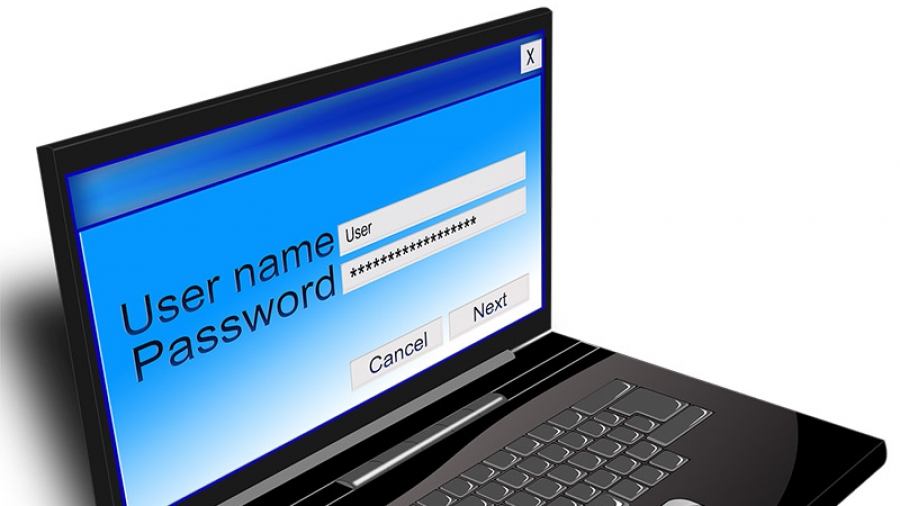
password-protect-feature

How to Password Protect an Entire Directory on Your WordPress Site

WordPress allows for password protection on a page or post level using the Visibility option. (see screen print on right), but what if you want to password protect the entire website so that only those with a password can gain access? This tutorial will show you how to password protect your entire site (or a certain folder or directory of your site) by modifying your .htaccess file and creating a .htpasswd file.Your

Steps to Protecting a Directory or Folder with a Password

Modify your .htaccess file

Your .htaccess file can be found and downloaded locally using an FTP tool, such as Filezilla. Using a plain text editor like Notepad, add the following contents to your .htaccess file:

AuthName "Members Area"
AuthType Basic
AuthUserFile /path/to/your/directory/.htpasswd
require valid-user

Note that you will have to modify the above according to your situation. In particular, change:

AuthName

Change “Members Area” to any name that you like. This name will be displayed when the browser prompts for a password. I personally like to use “Authorization Required”, but any name will do.

AuthType

You do not have to modify this line. Just copy it verbatim to your file.

AuthUserFile

The “AuthUserFile” line tells the Apache web server where it can locate the .htpasswd password file.

Ideally, the password file should be placed outside any directory accessible by visitors to your website. For example, if the main page of your web site is physically located in “/home/your-account-name/public-html/“, place your .htpasswd file in (say) /home/your-account-name/.htpasswd. That way, on the off-chance that your host misconfigures your server, your visitors cannot view the .htpasswd contents by simply typing https://www.example.com/.htpasswd.

Wherever you decide to place the file, put the full path of that file after “AuthUserFile”. For example, if the directory where you placed the file is /home/your-account-name/.htpasswd, modify that line to “AuthUserFile /home/your-account-name/.htpasswd“. Note that your password file need not be named .htpasswd either. It can be any name you wish. For ease of reference, however, this tutorial will assume that you chose “.htpasswd“.

require

The line “require valid-user” means that any user specified in your .htpasswd (ie, password) file will be able to access that directory. (You will be creating the password file later in this article.)

If your password file contains many users, but you only want a specific user to be able to access this directory, change the “require valid-user” to:

require user sally

You should of course replace sally with the user name of the person to whom you want to give access. You can even add multiple names to that line:

require user sally mary bill tom

In the above case, the four users listed after require user will be allowed access to that directory. Notice that even when you list multiple names, the directive to use is require user. Do not use the plural form of user.

Also note that you will need to be sure your file manager or finder is able to see system files that begin with a dot (.). By default these may be hidden. Doing a Google search for “how to see hidden files” will provide several ways to make them visible which is critical in order to complete this set up.

Save and Upload the .htaccess file

Save the .htaccess file. If you are using Notepad, be sure to save the file as ".htaccess", including the quotes, otherwise your text editor will change the name to “.htaccess.txt” behind your back. You DO NOT want .txt suffix as part of the name or it will not work. Then upload the .htaccess file to the directory that you want to protect.

Create the Password File .htpasswd

There are a couple of ways to create a password file. One way is to use SSH or shell access and server prompts. Another is to create the file using a plain text editor and an encoding tool. This tutorial will focus on the latter.

You will need to identify a user name and password, and these pairings will need to be encrypted. There is an online tool that may be used for this purpose. Find it here: https://www.htaccesstools.com/htpasswd-generator/ Fill in the form with your user name and password, select Bcrypt for Mode, then press “Create .htpasswd file”.


The output will look something like this:

Username:$2y$10$q/8DK1yyUpNkumEwMhu0nOXOATUxdRMtJ5uqzhsV595h/3iehcJ7O

Open a new plain text document and paste the encrypted user name and password into it. Be sure to save the file as ".htpasswd", including the quotes, otherwise Notepad will change the name to “.htpasswd.txt” behind your back. Upload the file to the appropriate directory as specified in your .htaccess file.

Testing Your Setup

Once you have completed the above, you should test your set up using your browser to make sure that everything works as intended. Go to your protected directory via your web browser to view it. You should be greeted with a prompt for your user name and password. If you have set everything up correctly, when you enter that information, you should be able to view the files in that directory.

A Word of Caution

You should note a few things though, before you go crazy password protecting directories that give the illusion that they can safeguard your data:

  1. The password protection only guards access through the web. You can still freely access your directories from your FTP tool and shell account.
  2. It protects directories and not files. Once a user is authenticated for that folder, he/she can view any file in that directory and its descendants.
  3. Passwords and user names are transmitted in the clear by the browser, and so are vulnerable to being intercepted by others. To address this problem, you should convert your website to HTTPS.
  4. You should not use this password protection facility for anything serious, like guarding your customer’s data, credit card information or any other valuable information. It is basically only good for things like keeping out search engine bots and casual visitors.
notebook-1850613_1280

Delete All WordPress Comments Using phpMyAdmin

In the event an extraordinary amount of WordPress comment spam is received, comments can be quickly deleted by using MySQL or phpMyAdmin.

First, login to your cPanel dashboard. Under the database section, click on phpMyAdmin.

Next, locate your WordPress database inside phpMyAdmin. You should see a page like this showing all your WordPress database tables.

Find and check the box next to wpprefix_comments and wpprefix_commentmetatable. Note: the name of your comments tables may differ depending on the table prefix you choose during your WordPress installation.

Once the comments table is selected, locate the ‘With selected:’ drop down menu below the table list and select ‘Empty’ from the drop down menu.

PhpMyAdmin will display the following warning:

Click on the Yes button to continue. This will delete all WordPress comments from your database.

You can also delete all WordPress comments using MySQL console (command line). Simply log into your MySQL console and run this command:

1
2
TRUNCATE `wp_commentmeta`;
TRUNCATE `wp_comments`;
hacker

An Easy Way to Customize a WordPress Template File

Sometimes you just need to tweak a theme’s template file in order to add custom elements not made available by the customizer or theme options. If you’re not comfortable modifying a template’s php code, try using a sweet little plugin called ‘amr shortcode any widget’. This plugin basically allows you to make a shortcode out of any widget then insert it into any page, post, or php template file.

In my case, I needed to add a phone number and a call to action button into a theme’s header file. Unfortunately, the theme itself did not provide an option to do this. Fortunately, I found a plugin entitled ‘amr shortcode any widget’ that provided the solution!

Using this plugin, here are the steps I took to achieve the desired affect in the header.


First, install and activate the plugin.
Next, go to widgets and find the new section called Widgets for Shortcodes.

Add the desired widget to this section (in this case, I used the Custom HTML widget to add phone and button shortcode). Save.


Next, find the widget ID that will be placed in a shortcode.

1. Open Appearance->Widgets
2. On top of the screen, find “Screen Options” and open it
3. Click on “Enable Accessibility Mode”
4. Find the widget for which you want to know ID and click the “Edit” button


Using the shortcode, I inserted this tag into the header.php file to achieve the desired result.


Keep in mind this type of change will be overwritten when the theme is updated, so be sure to use a child theme, or keep a copy of the file modification to re-add after updating the theme.


fatal-error

How to Resolve WordPress Fatal error: Allowed memory size of 67108864 bytes exhausted…

WordPress is written in PHP, a server-side programming language. Servers need sufficient memory to run multiple applications at the same time and will allocate specific memory size to different applications, including PHP. Unfortunately, many low budget and shared servers provide minimal default amounts which may not work for growing website.

When your site requires more memory than the allocated memory, you may see this error:

WordPress automatically tries to increase the PHP memory limit if it is less than 64MB. However, 64MB is often not high enough. If this happens to you, don’t worry! I’ve found this solution to be the most effective:

Open your cPanel, then scroll down to the Software section. Click on Select PHP Version.


When it opens, check your PHP version. If 5.4 is set as the current version, you’ll want to select another since, by default, only 64M of memory will be allocated. Additionally, there may be code within your website that will not support PHP version 7.0, so I’d suggest starting with 5.6. Click on Set as current then click Save.


Once you’ve completed this step, click on Switch To PHP Options on the right of the screen.


When it opens, find the memory_limit line item, then click on it’s value on the right to change it to the limit you want. Once you’ve made your selection, click Save at the bottom.  You may also choose to change the value for  upload_max_filesize if you find it’s value is also too low.


That’s it!

compare

Using TextWrangler to Compare Text Files

TextWrangler is capable of comparing text files and highlighting the differences between them, and it’s super easy to do it:

1. Open the two documents that you’d like to compare in TextWrangler.

2. Highlight the 2 files you want to compare in the window on the left, then right click on them and select the option ‘Compare‘.

TextWrangler will show you exactly which lines were modified so you can easily compare and/or copy them from one file to the other.

feature-php

How to Reset Your WordPress Password using PHPMyAdmin

If you’re on a shared hosting plan and have cPanel, login to cPanel and select phpMyAdmin found under Databases.

Once you’re inside phpMyAdmin, select the database that you’re using for your WordPress installation. In this case, we will use xxxxx_WWLdb (the prefix is blocked out).

Look for a table entry called wp_users and select it (hover and click on wp_users). In most scenarios this should be the case. However, if you’re a security enthusiast, then you might have used a different prefix during the WordPress installation. The default prefix is wp_ hence the table entry wp_users. However, if your prefix was say notwp_ then your user table entry would be notwp_users.

For simplicity, let’s assume the default prefix – wp_users. Once the table is loaded, look for the username you had chosen while installing WordPress. In this tutorial I’m assuming it’s the default username – admin. Click on the little yellow pencil icon located next to the admin entry – that’s the edit icon.

Look for the row named user_pass (usually the 3rd one). The password is shown as encrypted.

You may also change other values, such as user_login and user_email, if desired.

  • Under the Function field, set it to MD5.
  • Under the Value field, enter your new password – let’s say changed-password.
  • Click on Save Changes (select Save and click GO).

Done!

FYI – when you refresh the page, your new password will be encrypted.

security

Working with SSL Certificates and HTTPS

When accessing a website that uses HTTPS (connection security), the website’s server uses a certificate to prove the website’s identity to browsers, like Chrome. Anyone can create a certificate claiming to be whatever website they want, but Chrome and other browsers require websites to use certificates from trusted organizations. SSL not only delivers a sense of security, but also contributes to search rankings in Google.

Steps to request and install an SSL Certificate (Host Gator):

  1. In WHM, use the Request SSL Certificate link, then copy and save the generated code once completed.
  2. Go to a trusted organization to purchase the certificate. I personally used Comodo via Namecheaps and bought a 3-year individual certificate. Follow their instructions to request the certificate. They will need the Certificate Request code you saved in step 1. Your trusted source may require you to validate your request via email link or uploading a file to the root of your website. I found I needed to do the email validation because somehow they were unable to access the file I uploaded to my server.
  3. You will be notified when the request is complete and the certificate is issued. I received mine via email. You may also receive a badge to place on your website.
  4. At the same time, request a dedicated IP address from your hosting support (required by Host Gator). Expect an added cost for a dedicated IP. Host gator charges $4 per month.
  5. Once the dedicated IP is issued, support will need to install the certificate on the site and will require the RSA key that you saved in step 1.
  6. Supply the SSL certificate to support via email, then see step 7 to upload the RSA key into the home directory for the site in question (so support can quote you the correct fee for installation – yes, there is a charge to install!). All domains hosted in your cPanel may experience DNS propagation for 4-8 hours.
  7. Provide support with the matching RSA key code. RSA key must be enclosed between “—–BEGIN PRIVATE KEY—–” and “—–END PRIVATE KEY—–“. Please note that for security reasons, support can no longer accept the SSL’s RSA key in plain text via an email or ticket response. Instead, save the RSA key in a TXT file and upload that file to your hosting account’s HOME directory (one folder below the public_html folder). Provide the name of the text file to support so they can retrieve it.
  8. Support will confirm installation. The SSL site seal logos for your website can be found at the following: http://www.positivessl.com/siteseals.html. Credit Cards may be accepted in an online store with TransFirst. Secure, PCI Compliant and Next-day funding available. Request more information here: http://www.transfirst.com/lp/hostgator/ssl/

Once everything is set up and installed, it will be necessary to direct your site to HTTPS. If you’re adding SSL to your existing site and using WordPress, then you need to setup WordPress SSL redirect from HTTP to HTTPS. You can do this by changing the WordPress Address (URL) and Site Address (URL) in Settings > General from HTTP to HTTPS.

Another way to do this is by adding the following code in your .htaccess file:

RewriteEngine On
RewriteCond %{SERVER_PORT} 80
RewriteRule ^(.*)$ https://www.yoursite.com/$1 [R,L]

(Be sure to replace yoursite.com with your site URL)

A word of caution: adding the redirect via .htaccess could cause access issues to subdirectories running their own programs, such as Infinite WP and forums. This can be remedied by modifying the config files within these directories, or by removing the .htaccess code and using an alternate method.

Directing your traffic to HTTPS can also be accomplished by setting up a redirect via cPanel in order to go to the https version. Here is an article and video tutorial for this: http://support.hostgator.com/articles/articles/cpanel/url-redirect-how-to-create

Also: http://www.wpbeginner.com/wp-tutorials/how-to-add-ssl-and-https-in-wordpress/

When a webpage is secured using HTTPS, the connections to it are encrypted by SSL and are identified to be secure. This is the goal, however, initially your page may also include content loaded through an HTTP connection instead of HTTPS which will negate the secure status. That said, go to your website using https://yourwebsite.com to see how it looks. If all is well, you will see the green secure padlock on your address bar. Chances are, however, you will see the mixed content warning which means some images and links will need to be corrected to point to HTTPS rather than HTTP. It is important to correct this as quickly as possible as visitors may begin receiving warning messages from web browsers saying there is mixed content or insecure content loaded. In order to make your images work, you have to remove the mixed content. In general, this is about finding the HTTP links in your website code and updating them to HTTPS.

Here are a few ways to find and remedy the insecure content:

  1. If running WordPress, install the SSL Insecure Content Fixer plugin or WordPress HTTPS (SSL) plugin. This will find the insecure links for you and correct most, if not all.
  2. There is another WordPress plugin called Protocol Relative Theme Assets that may work in many cases for css and script calls. Basically, it will trick the visiting browser into not reporting your bad mixed-content to everyone who visits your site by replacing the ”http://…” with simply “//…”. Note: the plugin does not transform any image paths and has not been updated by the developer in a while.
  3. Check all pages’ source code manually for HTTP links and change to HTTPS (the hard way, but sometimes the only way!).
  4. Use an online checker, such as Why No Padlock It’s a simple tool that will tell you about any insecure items on your SSL page. Simply type in the full https secure URL into the box below and get a report about:
    – Insecure calls to images,css, and javascript
    – Images called insecurely from linked css and js files
    – Expired cert, invalid or missing intermediate certificate (including 3rd party SSL certs.)
    – SHA-1 algorithm test, POODLE test, insecure form calls for Chrome
  5. Check your theme – the theme may be using absolute URLs instead of relative URLs in the theme files. For example, it might be hard-coded to load an image file from http://domain.com/wp-content/themes/theme-name/images/background.png.
  6. Check your plugins. This was my issue. After several attempts to remedy my insecure issues, I resorted to deactivating all my plugins, then one by one, reactivated them until I found the plugin that was causing the issue.
server-blue

Moving a Forum from One Server to Another

Moving a forum to a new server can be a daunting task, especially when considering the need to transfer critical information contained in the forum’s database. Not only will the forum files and database need to be transferred, but the database configuration will also need to be modified to reflect the new server names. Fortunately, with cPanel’s BackupmySQL®Databases and PHPmyAdmin tools and an FTP tool, such as Filezilla, the task is not nearly as difficult as it may seem.

Here’s how:

  1. Make a backup of the forum’s database from the old server. This can be done directly within the forum’s admin panel using the Export feature, or by using the Backup tool found in cPanel (Files > Backup). Save the backup file to your local computer. Simply click on the database and it will download.
  2. Transfer the forum files and folders from the old server to your local computer using an FTP tool like Filezilla.
  3. Once the transfer is complete, transfer the files and folders from your local computer to the appropriate directory on the new server via FTP.
  4. Using the new server’s mySQL®Databases tool in cPanel, create a new database and user for the forum. Be sure to add the user to the database with all privileges.
  5. Next, open the PHPmyAdmin tool (new server cPanel) and click on the newly created database on the left-side column. You may need to click on the on the + sign to expand the view to find the database.
  6. Click on the Import tab at the top, then click on Choose File to select the backup file for your database on your local computer. Once selected, click Go. (The other default presets on this window need not be changed.)
  7. Next, you will need to modify the configuration of the database settings. To do this, locate the forum’s config.php file and transfer this from the new server to your local computer via FTP. Some forums may have a different title for their config file, such as Settings.php. The important thing is to find the php file that contains the server settings found in step 8.
  8. Open the config.php file using a simple text editor. Find the database settings and modify according to the new server settings. The settings to modify will look like this (in blue):
    • ########## Database Info ##########
      $db_type = ‘mysql’;
      $db_server = ‘localhost’;
      $db_name = ‘newserver_DbName’;
      $db_user = ‘newserver_DbUserName’;
      $db_passwd = ‘UserPassword’;
      $ssi_db_user = ”;
      $ssi_db_passwd = ”;
      $db_prefix = ‘smf_’;
      $db_persist = 0;
      $db_error_send = 0;
  9. Save the changes and upload via FTP to the new server, replacing the existing config.php file.
  10. Your forum is now ready to use on the new server!

If you desire further understanding, here’a a YouTube video that will walk you through the process. Although this is specific to a phpBB forum, the concepts are the same:


iphone-email-dark

Using Gmail to Connect to Your Other Email Accounts

How to Use Gmail To Connect To Another Email Account (POP or IMAP)

  1. Open up your Gmail or Google Apps account.
  2. Click Settings (gear icon, upper-right).
  3. Select the Accounts and Import tab.
  4. Click Add another email address.
  5. In the window that pops up:
    1. Type in the Email address you want to connect to.
      Optional: Treat as an Alias can be specified, if desired. More
      Optional: Reply-to address can also be specified, if desired.
    2. Click Next Step.
    3. Type in the Password for the email address you want to connect to.
    4. Be sure SMTP Server: is set correctly based on your account’s settings
    5. Set Port and other settings as desired.
    6. Click Next Step
    7. Either Click on the link in the confirmation email OR Enter and verify the confirmation code and click Verify.
    8. You will then be asked to confirm sending mail as you@youraccount.com.
    9. Click Confirm
how-to-install-wordpress

Installing WordPress using FTP

Manually installing WordPress (also known as the famous 5 minute install) is the cleanest way to install WordPress. This is especially true as more and more 1-click installation tools such as Quick Install, Softaculous, and Mojo Marketplace include “bloatware” in their installs. The manual installation has a few added steps, and you will need an FTP client for that, but it is worth the extra effort to ensure a slim and clean WordPress installation on your server.

First thing you need to do is download the latest version of WordPress. Unzip the file, and use the FTP software to upload the files into your web host directory of your choice.

If you want to install WordPress on your root domain name (like example.com), then you need to upload WordPress files to your website’s root directory. Usually this directory is called /public_html/.

On the other hand, If you want to install WordPress in a subfolder (like example.com/blog), then upload it in a folder /public_html/blog/.

Once you are done uploading WordPress, go to your hosting control panel to create a database. We are using cPanel web hosting, so our screenshot will be of cPanel. In your cPanel, find the icon like this:

You will see a field to create a new database. Enter your database name, and click “Create Database”.

Now that you have created your database, MySQL still needs a username. This username will have access to perform actions on the database.

On the MySQL Databases page in your cPanel account, scroll down to MySQL Users section. Simply provide a username and password for your new user and click on the ‘Create a user’ button.

This new user still does not have access to the database you created earlier. For that you will need to add the user to the database and give them permissions to perform all actions.

On the same MySQL Databases page in your cPanel account, scroll down to ‘Add User to a Database’ section. Select the database user you created from the dropdown menu next to user, then select database, and click on the add button.

You will then be asked for the privileges you want to allow this user. Select all privileges and click on the Make changes button.

Your MySQL database and user are now ready, and it is time to run the WordPress install.

Simply go to to the URL where you uploaded WordPress. If it is in the main domain, then enter your domain name in the browser window, like yoursite.com or www.yoursite.com.

You will see the language selection page. You can choose a language here so that rest of the installation is displayed in your own language. You can also use English for now and then later change the language.

Click on the continue button to proceed.

You will now see some installation instructions. Basically WordPress will now tell you that it will need your database name, password, and mysql host information.

Click on the ‘Let’s go’ button to continue.

WordPress will now show you a form. You need to enter the name of the database you created earlier.

Fill in the information and then click on submit button. WordPress will now connect to your database and will show you a success message.

Click on ‘Run the Install’ button to continue.

WordPress will now create tables in your database and then send you to the next step of the installation.

Now you need to provide some information for WordPress to setup your site. This includes site title, username, password, and admin email address.

If you do not want your website to be visible to search engines, then you can check the box next to search engine visibility. Later when you are ready you can change this from WordPress settings. If you are unsure about what to do, then simply leave it unchecked.

Click on the Install WordPress button to continue. WordPress will setup your website and finish the installation.

You will see a success message showing your username. You can now click on the Log in button to sign in to your WordPress site.